Step 1 - Create TEOS account
You can access the WLM web app via a tenant specific link. This link will be provided by the administrator of the corresponding tenant. Open the link to register. There are two possibilities to create TEOS account: use existing accounts from Google, Microsoft or Facebook, or fill out the TEOS registration form.
If you choose to sign up without using Google/Microsoft/Facebook, fill out the form, accept the data policy and terms and conditions and click on “Next” (see Figure 1).
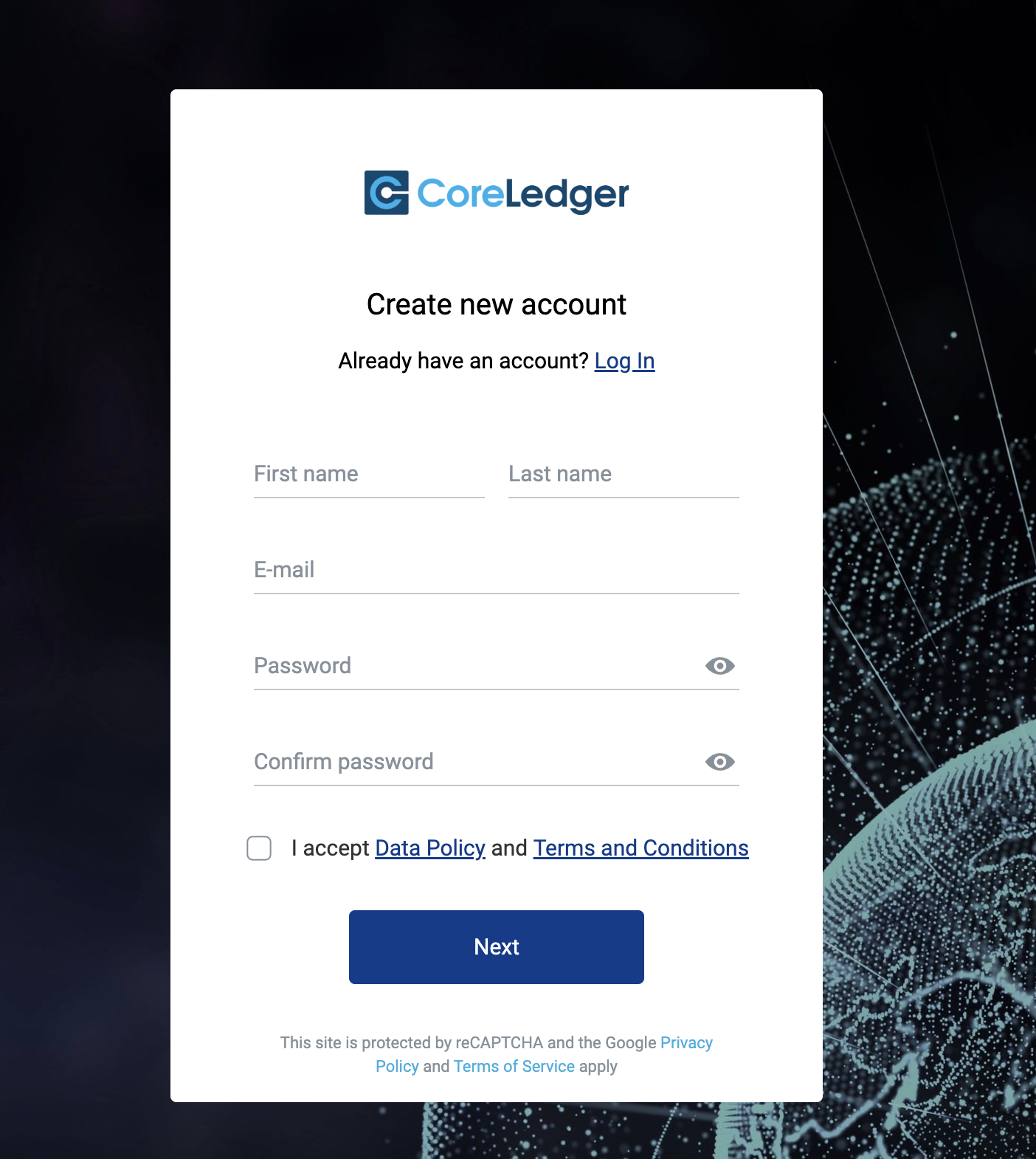
Figure 1: Creating TEOS account
If the sign up was successful, you will receive an email from CoreLedger. Check your mailbox for a confirmation email. In some cases, the email might be found in the spam folder. To finish the sign-up process for the web app, click on “verify e-mail” in the confirmation email. The browser opens the following page:
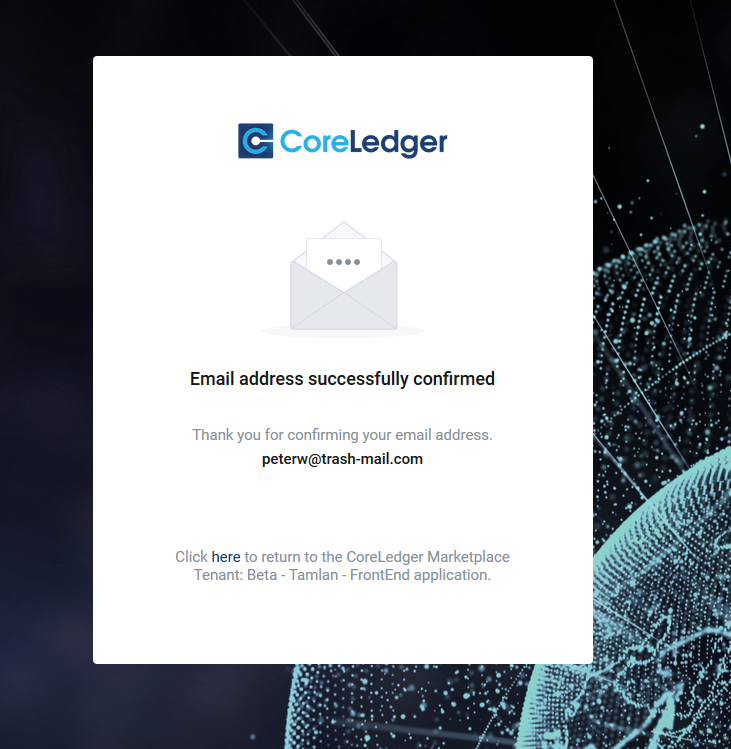 Figure 2: Email confirmation
Starting from now you have a TEOS account which will be used in all TEOS apps and tech products.
Next you can click “here” to continue the registration process in the app where you came from.